I have had more than one request for a tutorial on how I made the temple pictures. It was not too complicated, if you have a general idea of how photoshop works.
Step 1. Download actions from thepioneerwoman.com and find textures to use. You can download some from here.
Step 2. Use the vintage action from the pioneer woman. Now, play with the opacity, I used about 77% opacity. Each picture is different, each project different....so choose what you like best.
Step 3. Evaluate the picture. Do you like it as it is now? Does it need to be more defined, softer, etc.... Play with the different actions. I used the boost action on some of the photos, and other actions on other photos. Play around until you like your photo as it is. We will be adding textures, but they will just enhance the photo, not MAKE it.
Step 4. Here's some fun info. Do you see the little eye on the side of each layer? This is the show/hide function. Turning it on and off let's you see the difference the layer makes for the photo. Play with this one!
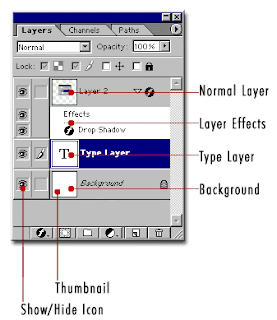
Step 5. Start adding layers. Open up the textures you would like to use. Drag them onto your photo, and stretch or shrink them as needed, to fill the photo.
Step 6. Use the blending modes feature (as shown in the circle below), and pick the soft light blending mode.
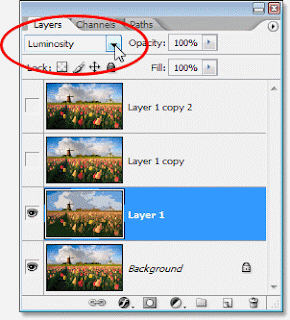
Step 7. From here, just add new textures (continue to use the soft light blending mode), and keeping playing until you find the composition you like. Play with the opacity of each layer, adjust to see the difference it makes.
Step 8. Add text . Use the text button, and add the text. I used three different layers so I could have the most control of how it "flowed." I also used the font, Hannibal Lecter.
Step 9. Save as a JPG to have it printed.
Hopefully this helped, have a happy photoshop day.

 piles and piles of clean laundry. We all love clean laundry, but I showed you just one corner of my couch. The whole blessed couch was filled with kids clothes today. Now, they are safely nestled in the kids laundry baskets waiting for the kiddos to put them away.